How to write a contra to Xero and settle the net
This guide covers the second half of a contra: marking the documents paid in Xero and settling the balance. It follows on from how to create and agree a contra.
1. Write the contra to Xero
- Open the contra and select Write to Xero.
- Check the summary: the number of documents, the contra account, the contra date and the net that will remain to settle.
- Select Write to Xero to confirm.
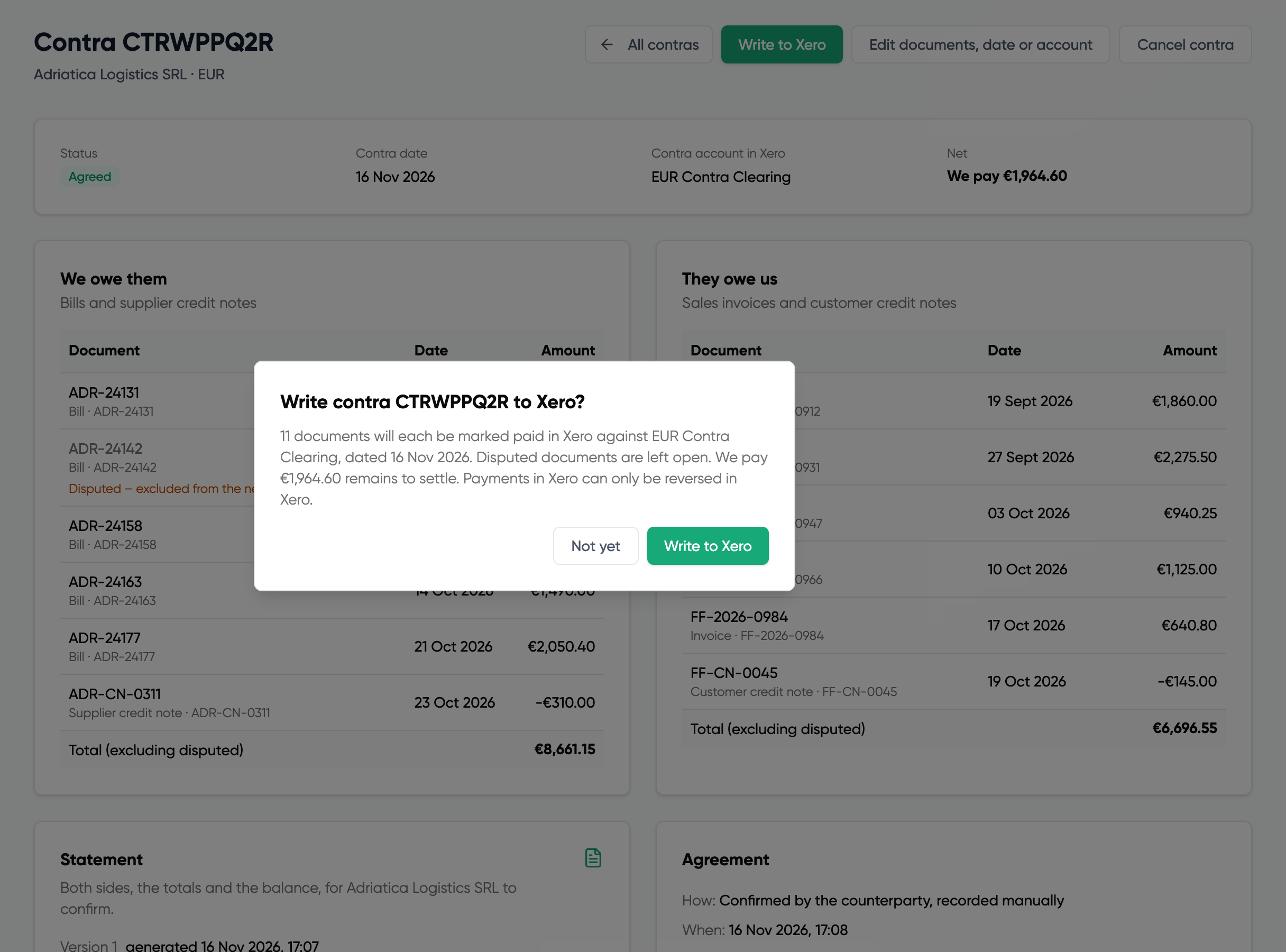
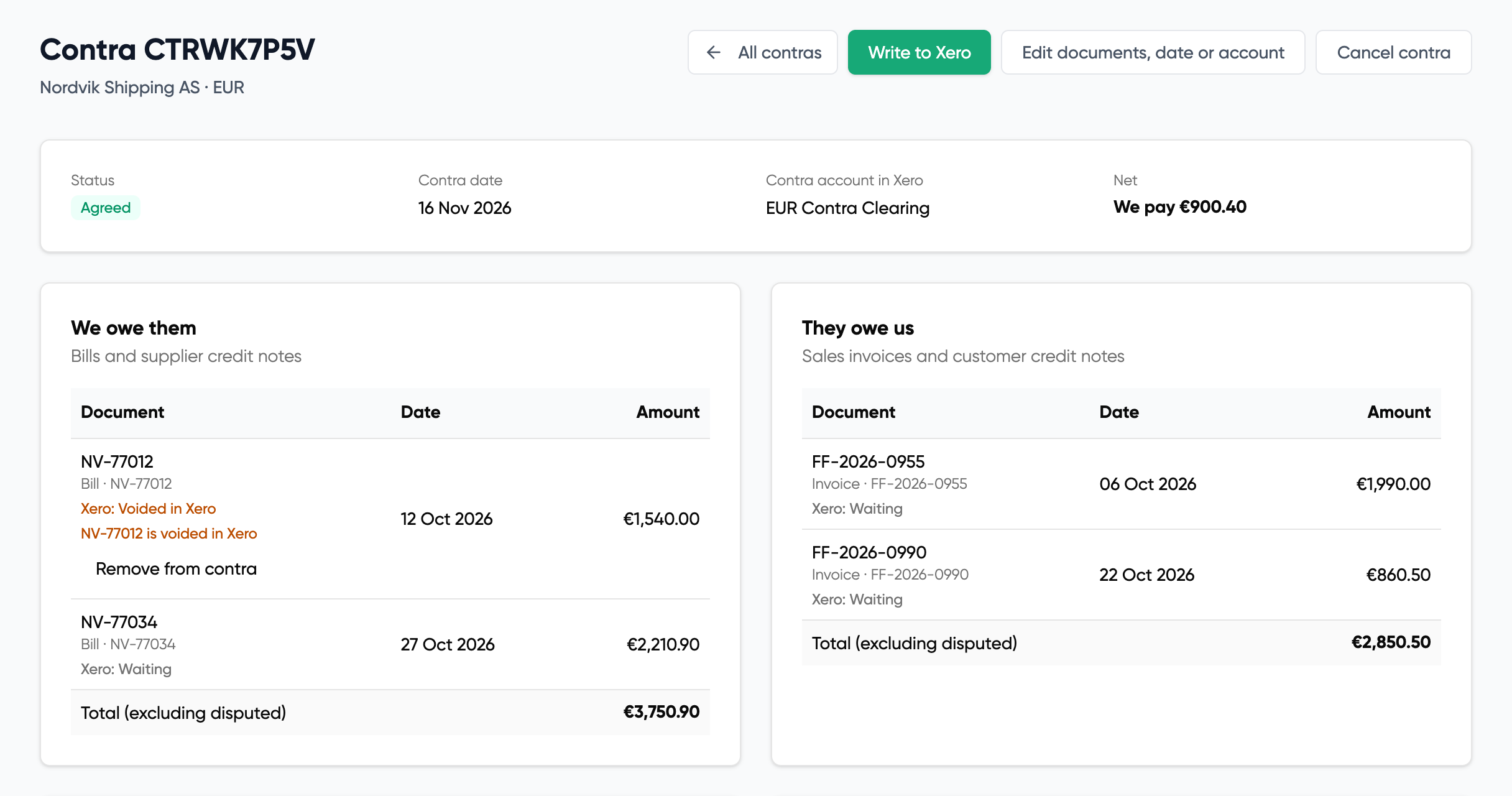
HedgeFlows first re-reads every document from Xero. If any has changed since you selected it, for example it was paid, voided or its amount changed, nothing is written and the contra stays Agreed. Each changed document shows why. Select Remove from contra to take it out, then select Write to Xero again.
If the check passes, the contra moves to Writing to Xero. Xero limits how fast payments can be posted, so a large contra takes several minutes. The page updates on its own and you can leave it.
What is posted in Xero
Each document gets one payment against the contra account, dated the contra date and already reconciled, with the contra reference on it.
| Document | What happens in Xero |
|---|---|
| Bill | Paid from the contra account |
| Sales invoice | Received into the contra account |
| Supplier credit note | Refunded into the contra account |
| Customer credit note | Refunded from the contra account |
When every document is written, the contra shows Written to Xero, each document shows Xero: Written, and the contra account holds the net as its balance. Disputed documents are left open in Xero.
If a document fails
If some documents could not be written, the contra shows Written – incomplete and each failed document shows the reason.
| Status | What to do |
|---|---|
| Voided in Xero, Already paid in Xero, Changed in Xero | The document no longer matches the contra. Remove it from the contra. |
| Xero connection expired | Reconnect Xero in your settings, then retry. |
| Payments permission missing | Switch the payments permission back on in your Xero integration settings, then retry. |
| Xero unavailable, Failed | Read the message from Xero shown under the document, for example a locked period. Fix it in Xero and retry, or remove the document. |
- Retry sends the document to Xero again.
- Remove from contra takes it out. The net follows the documents that were written, and the statement is marked as revised after agreement so the change is on record.
A contra cannot be settled until every remaining document is written. If Xero has not reported on some documents for several hours, select Stop waiting to mark them failed, check them in Xero, then retry or remove each one.
2. Settle the net
The Settlement panel shows who pays whom and how much.
You owe the balance: Pay via HedgeFlows
- Select Pay via HedgeFlows. A single transfer for the net opens, addressed to the counterparty.
- Fund and submit it as you would any other payment.
- A second person approves it. Payments that settle a contra always need approval by someone other than the person who created them, even if your company doesn't use transfer approvals. Approvers can do this from the contra page with Approve payment.
When the payment is sent, HedgeFlows posts a bank transfer in Xero from your HedgeFlows currency account to the contra account, emails the counterparty a remittance with the contra statement attached, and marks the contra Settled.
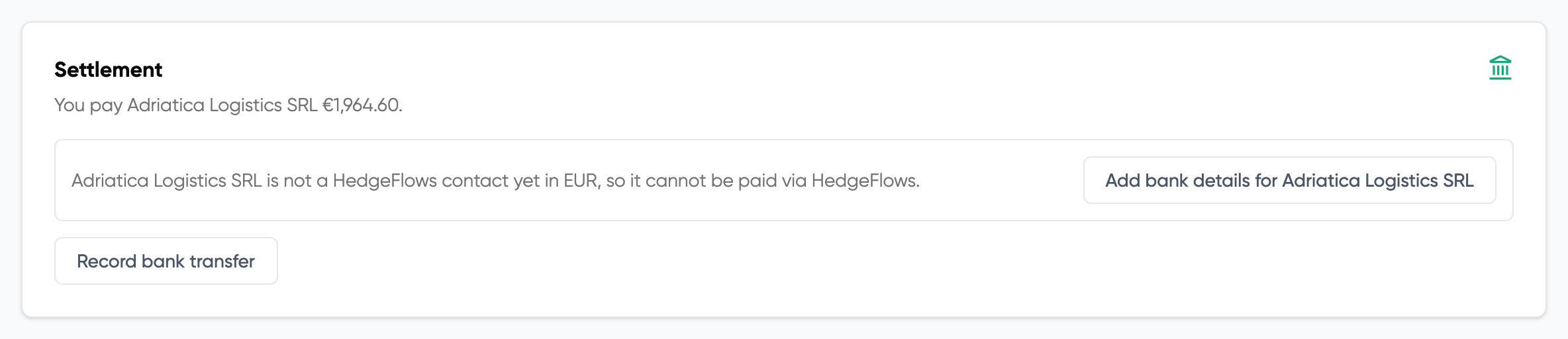
The counterparty needs to be a HedgeFlows contact with bank details in the contra currency. If not, the Settlement panel says so and offers Add bank details for them instead. Add the details, then come back to the contra.
You owe the balance: pay from your own bank
- Pay the counterparty from your bank as usual.
- On the contra, select Record bank transfer and enter the date of the payment.
HedgeFlows posts a bank transfer in Xero from your bank account for that currency to the contra account. Match it to the bank statement line in Xero when it appears.
They owe the balance
- When their payment arrives, select Record receipt and enter the date.
HedgeFlows posts a bank transfer in Xero from the contra account to your bank account for that currency. Match it to the bank statement line in Xero.

Nothing to settle
If the two sides offset exactly, select Close contra. Nothing is posted.
Recording a transfer or a receipt uses the currency-to-bank-account mapping in your Xero integration settings, the same one Bills to Xero uses. Set the bank account for the contra currency there first.
After settlement
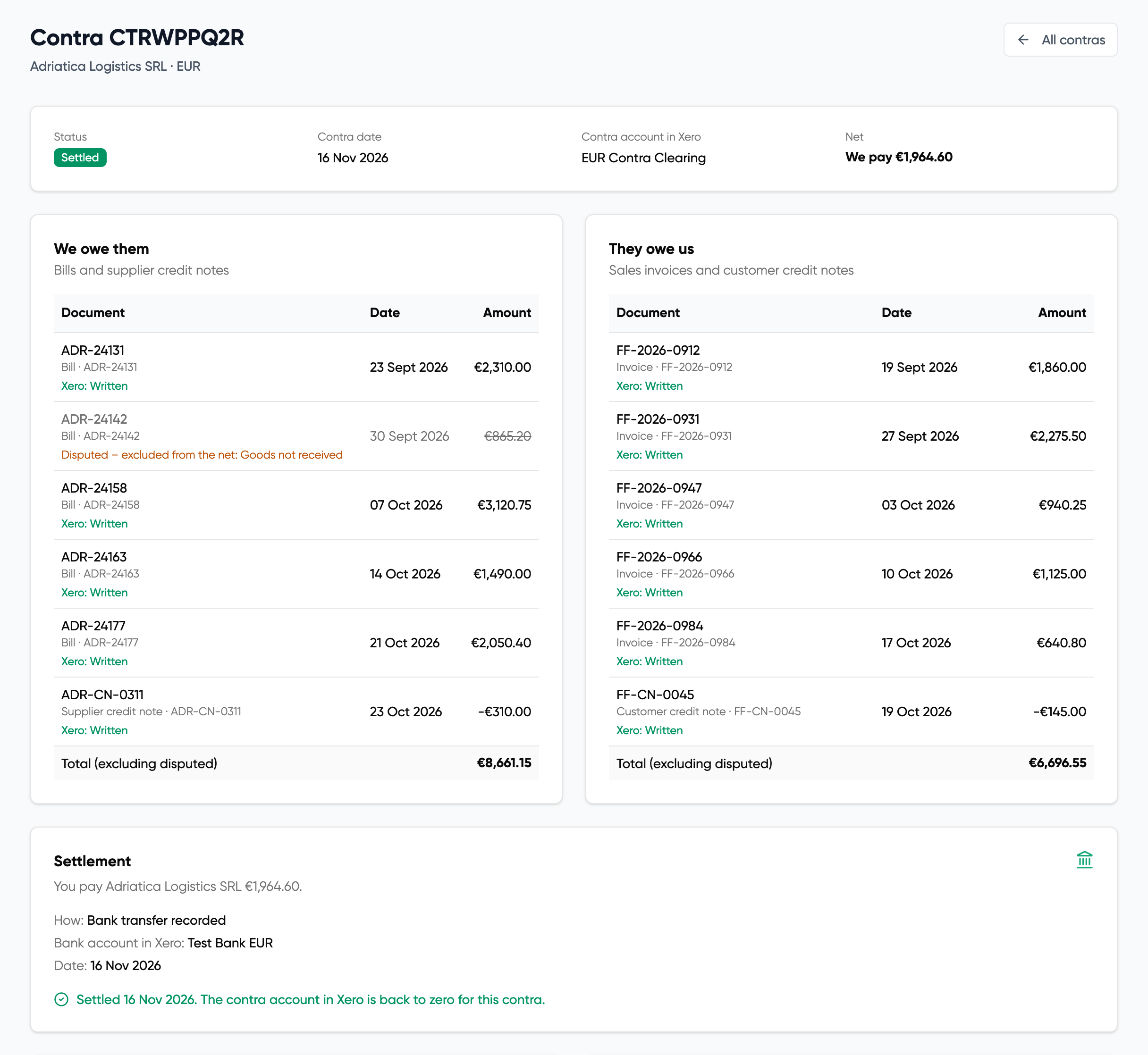
The contra shows Settled and the contra account in Xero is back to zero for this contra. The statement, the agreement and the full history stay on the contra for your records and your auditor.
If settlement fails
- The HedgeFlows payment did not go through. Nothing was posted in Xero. Settle again.
- The bank transfer could not be posted to Xero. Select Retry the Xero posting. A transfer that is already in Xero is not duplicated.
- The payment changed after it was linked. Do not pay it again. Check the payment and the contra account in Xero, and contact support if you are unsure.
Related
Questions? Email support@hedgeflows.com.