Contras in Xero: how it works
Contras are for finance teams who trade both ways with the same company, such as a freight forwarder and its overseas agent. Instead of paying every bill and waiting for every invoice to be paid, you net what you owe them against what they owe you. HedgeFlows marks every bill, invoice and credit note as paid in Xero, and only the balance changes hands.
Contras are in early access for companies connected to Xero, and cover one currency per contra.
Before you start
- Connect Xero. Contras read your open bills, invoices and credit notes from Xero and mark them paid there. See Xero: getting started.
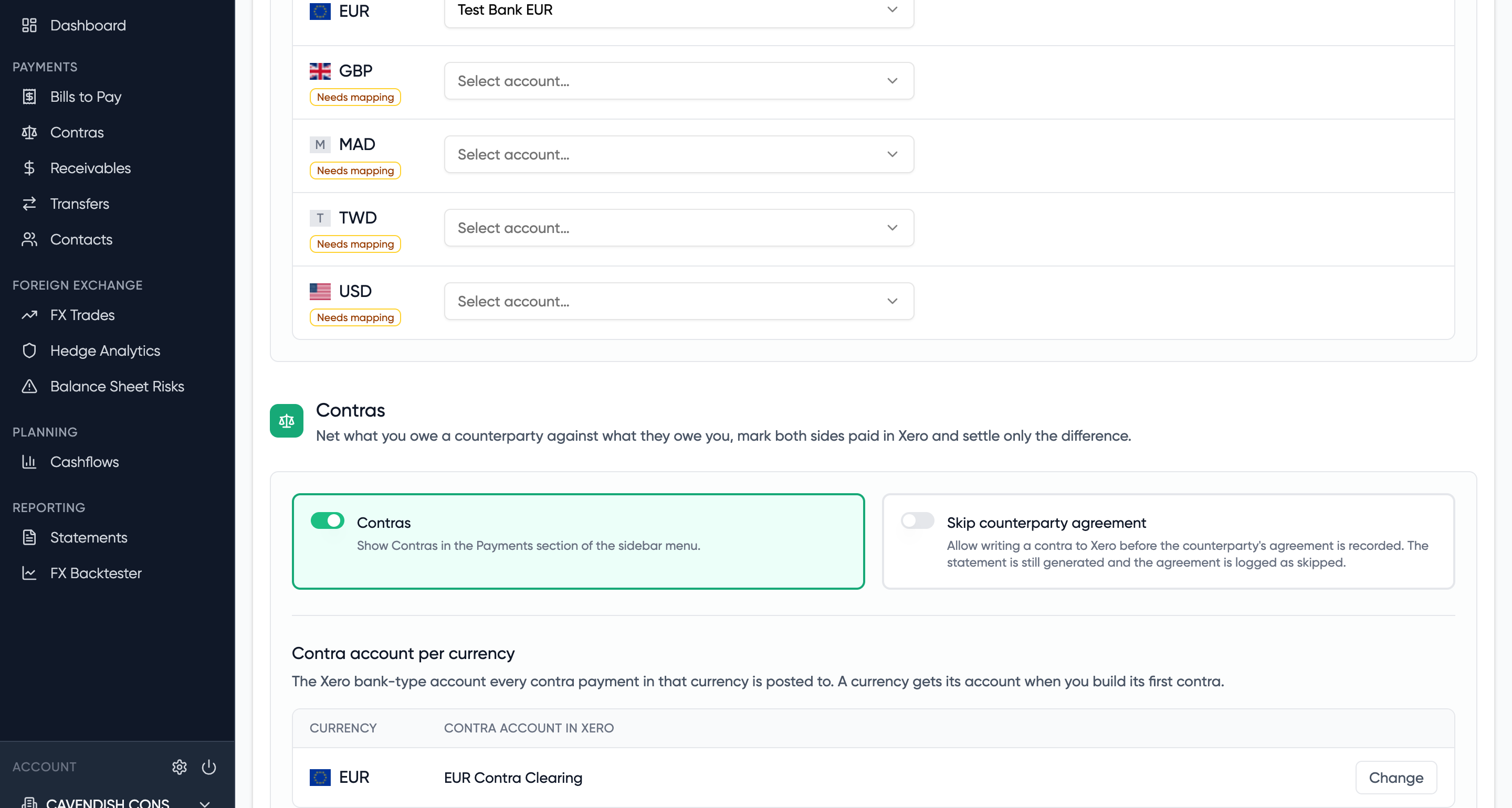
- Switch Contras on. In your Xero integration settings, turn on Contras. This enables two Xero permissions: reading contacts, so statements can be addressed to the counterparty, and writing payments, so each document can be marked paid. Contras then appears under Payments in the menu. If you can't see the Contras section, email support@hedgeflows.com and we'll add you to early access.
- One Xero contact for both sides. The counterparty must be a single Xero contact with open bills and open sales invoices in the same currency.
- A contra account in Xero. Every contra posts to a bank-type account in the contra currency. If you already use a contra or clearing account, HedgeFlows suggests it. If you have none, HedgeFlows can create one for you the first time you build a contra in that currency.
- A bank account mapped for the currency. To record a payment or receipt made through your own bank, the currency needs a bank account in the currency-to-bank-account mapping, the same one Bills to Xero uses. It sits just above the Contras section in your Xero integration settings.
How it works
- Pick the counterparty. Go to Payments, then Contras. The Counterparties tab lists every Xero contact you could contra with, showing what you owe them, what they owe you and an indicative net. Select Start contra.
- Select the documents. Tick the bills, invoices and credit notes to include, and choose the contra date and the contra account. The net updates as you tick.
- Agree the statement. Generate a statement showing both sides and the balance, send it to the counterparty, and record their agreement. Anything in dispute can be flagged and left out.
- Write to Xero. HedgeFlows marks each document paid in Xero against the contra account, dated the contra date.
- Settle the net. Pay the balance with one HedgeFlows transfer, or record a payment or receipt made through your own bank. The contra account returns to zero.
Step-by-step guides: how to create and agree a contra, then how to write a contra to Xero and settle the net.
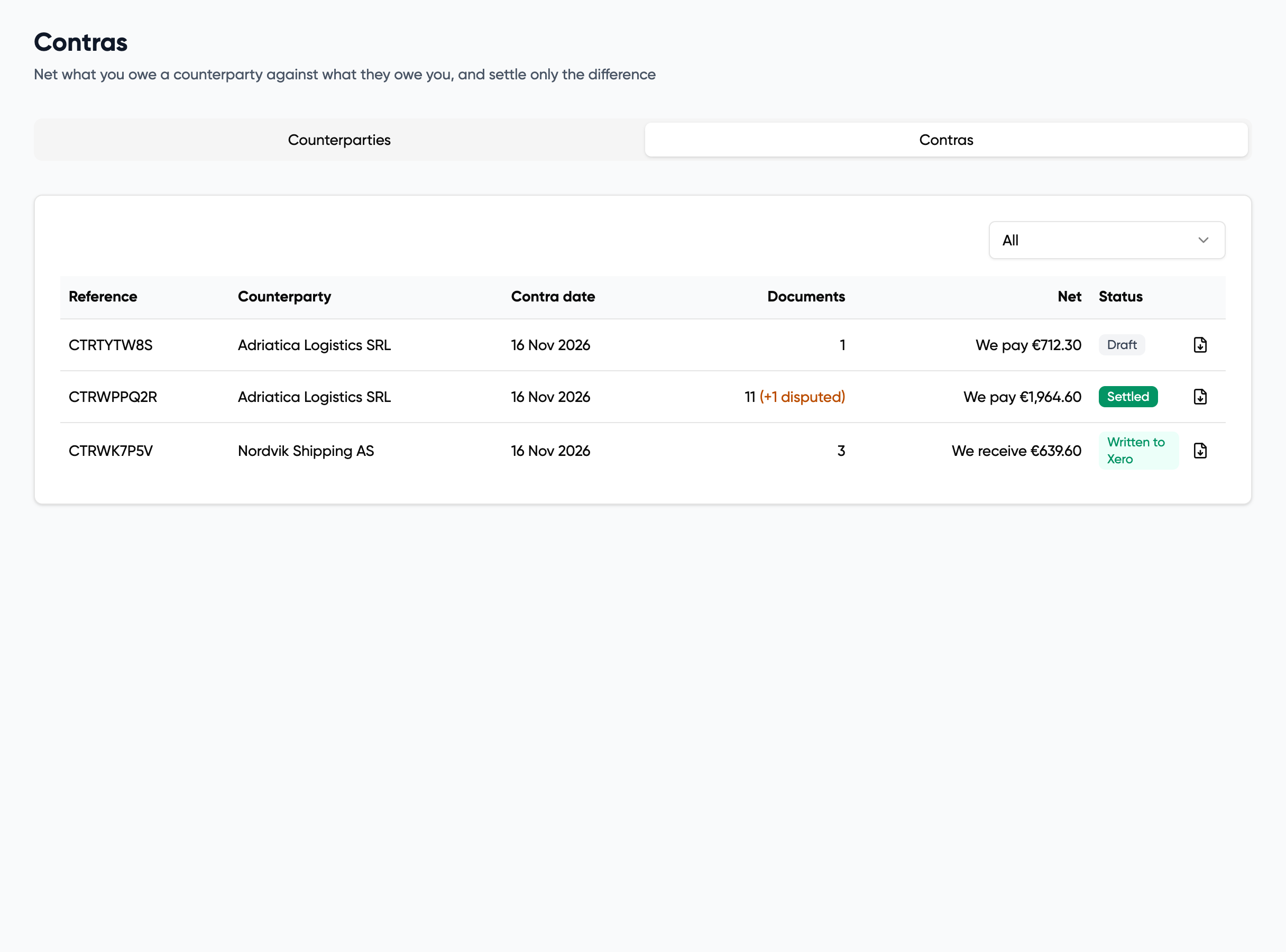
Contra statuses
| Status | What it means |
|---|---|
| Draft | Documents are selected. Nothing has been sent or written. |
| Statement sent | The statement has been emailed to the counterparty. |
| Agreed | The counterparty's agreement is recorded. The net is fixed and the documents can no longer change. |
| Writing to Xero | Payments are being posted in Xero. A large contra takes several minutes. |
| Written to Xero | Every document is marked paid in Xero. The net is waiting to be settled. |
| Written – incomplete | Some documents could not be written. Retry or remove them before settling. |
| Settled | The net has been paid or received and posted in Xero. |
| Cancelled | The contra was cancelled and its documents were freed. |
Good to know
- One currency per contra. If you trade with a counterparty in two currencies, create one contra for each.
- Only approved documents with an amount outstanding can be included, and a document is either in or out: a contra does not part-pay a bill or invoice.
- A document in an open contra is locked to it, so it cannot be picked into a second one.
- Every change is logged on the contra with who made it and when.
- Viewing contras, creating them and writing them to Xero are separate permissions, so you can decide who in your team does each.
- Once a contra is written, its payments can only be reversed in Xero.
Related
- Agent contras in Xero for freight forwarders
- Contras: FAQs
- How to contra invoices against bills in Xero by hand
Questions? Email support@hedgeflows.com.