Xero Batch Payments: The Complete Guide

If you pay more than a handful of supplier bills a month, paying and recording them one at a time in Xero quickly becomes a chore. Xero batch payments let you pay and record several bills together, so your books match the single payment on your bank statement.
This guide explains what a batch payment is in Xero, how to create and reconcile one, how payment files and remittance advice work, and the one big limitation finance teams run into: foreign currency bills. It finishes with two ways to automate the whole payment run with HedgeFlows — whether you want to pay through HedgeFlows or keep paying from your own bank.
What is a batch payment in Xero?
A batch payment in Xero records the payment of several bills at once, as a single payment from one bank account. Instead of opening each bill and marking it as paid, you select the bills together and Xero records one payment covering all of them.
That single payment matters for reconciliation. When you pay suppliers through your bank in one run, your bank statement usually shows one total rather than a line per supplier. A batch payment in Xero gives you a matching single transaction, so the statement line and your bills line up.
Batch payments are most useful for regular supplier payment runs — for example weekly or at month-end — where the same steps repeat every time: select the bills, get them approved, pay them, reconcile and let suppliers know.
How to create a batch payment in Xero (step by step)
- Open the Bills To Pay list and tick the checkbox next to each bill you want to pay together.
- When all the bills are selected, click Make Payment to add them to a new batch payment.
- From the drop-down, choose the bank account you want to record the payments from.
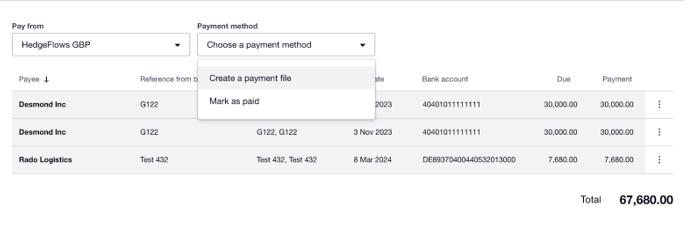
- Choose a payment method: Create a payment file (to upload to your bank) or Mark as paid (if you’ve already paid them from your bank).
- Click Create Payment to process the batch payment.
Reconciling a batch payment in Xero
When the money leaves your account, your bank feed usually shows a single statement line for the total of the batch. Reconcile that line against the batch payment as a whole, not bill by bill. If the totals match, the whole batch is settled in one step.
If the amounts don’t match — for example because one payment bounced or a bank fee was added — check the batch before reconciling, so you don’t leave bills marked as paid that weren’t.
Batch payments with BACS and payment files
If your bank accepts bulk payment files, Xero can create a file from a batch payment that you upload to online banking. Your bank then sends the payments — in the UK typically via BACS — and you approve them in your bank as usual. This saves re-keying supplier bank details and amounts.
Payment files work for base-currency bills. They don’t help with bills in other currencies, which is where most of the manual work in a mixed-currency payment run comes from.
What Xero batch payments can’t do: foreign currency bills
Xero batch payments only work for bills in your organisation’s base currency. That creates three problems for any business paying overseas suppliers:
- Foreign currency bills have to be marked as paid one at a time. If your organisation’s base currency is GBP and you pay a set of USD bills from a USD bank account, you can’t add them to a batch payment. Each one has to be recorded separately.
- There’s no batch remittance advice for foreign currency bills. Suppliers get individual remittances, or none at all.
- Exchange-rate differences have to be handled bill by bill. Each foreign currency payment settles at the rate on the day it’s paid, and the difference from the rate on the bill turns up as an FX gain or loss. See foreign currency gains and losses in Xero explained.
On a large payment run this adds up to hours of manual entry, payments allocated to the wrong bills, and FX differences to sort out at settlement.
Xero users have been asking for batch payments of foreign currency bills for years on Xero’s Product Ideas forum, where Multicurrency – Batch payments of Foreign Currency Bills is one of the most requested ideas.
Xero has also launched a bill-payment integration with Crezco. It works well for domestic payments, but has more limited functionality for businesses that need to pay large volumes of bills or make international bulk payments.
Last checked: October 2026.
Sending remittance advice for multiple payments
Remittance advice tells each supplier which bills a payment covers, so they can allocate it and stop chasing you.
Xero’s native remittance advice for batch payments only covers domestic payments — bills in your base currency. For foreign currency bills there’s no batch remittance: suppliers get individual remittances or none. If you pay many overseas suppliers, that usually means writing emails by hand or answering “has this been paid?” queries. Both HedgeFlows options below can email a remittance to every supplier for you.
Two ways to automate Xero payment runs with HedgeFlows
HedgeFlows connects to Xero and takes care of the payment run and the bookkeeping, including foreign currency bills. You can either pay through HedgeFlows, or keep paying from your own bank and let HedgeFlows do the bookkeeping.
| Pay with HedgeFlows | Bills to Xero (keep paying from your bank) | |
|---|---|---|
| Who sends the money | HedgeFlows (FCA-regulated) | Your existing bank |
| FX conversion | Optional, from 0.25% above interbank, or pay from your currency balances | None — optionally record the rate your bank gave you |
| Bills marked paid in Xero | Automatically | Automatically, in one batch |
| Currencies | 35 | 35+, including domestic bills |
| Remittance emails to suppliers | Automatic | Optional, sent for you |
| Pricing | Plans from free; FX from 0.25% above interbank | From £25 a month |
| Best for | Teams that want better FX rates and one place to pay | Teams that are happy with their bank but want to stop doing the bookkeeping by hand |
Pay suppliers in 35 currencies from Xero
Import the bills you want to pay from Xero, select them for a payment run and have them approved by your team. Fund the run from your HedgeFlows currency balances, or convert from 0.25% above interbank. HedgeFlows sends the payments, marks every bill as paid in Xero and reconciles the payments back automatically — base-currency and foreign currency bills in the same run.
See how it works with the Xero integration and payments and AP automation. For larger cross-border runs, read our guide to international bulk payments.
Bills to Xero: keep your bank, automate the bookkeeping
Many finance teams are happy paying suppliers through their own bank but still lose hours afterwards: marking each foreign currency bill as paid in Xero, matching it to the right exchange rate, and emailing suppliers to confirm. Bills to Xero does that part for you. Select the bills you’ve paid, and HedgeFlows marks them all as paid in Xero in one batch — including foreign currency bills — and can send each supplier a remittance email for you. Your money stays with your bank; your books stay up to date.
How it works
- Connect HedgeFlows to Xero.
- Import your bills and contacts from Xero.
- Map the bank accounts in Xero that payments should be recorded against.
- Select the bills to process as a batch.
- Choose the payment date and, optionally, the FX rate you paid and remittance emails to suppliers.
Bills to Xero works for bills in 35+ currencies, domestic and foreign. It’s generally available, with plans from £25 a month.
Start your free 14-day trial, or read how Bills to Xero works.
Questions about the Xero integration? See the Xero integration FAQs or contact us.
Frequently asked questions
What is a batch payment in Xero?
A batch payment in Xero records the payment of several bills at once, as a single payment from one bank account. It saves you marking each bill as paid individually and matches the single total that appears on your bank statement. Xero batch payments only work for bills in your organisation's base currency.
How do I do a batch payment in Xero?
Open the Bills To Pay list, tick the bills you want to pay together and click Make Payment. Choose the bank account you're paying from, pick a payment method — Create a payment file or Mark as paid — and click Create Payment.
Can I batch pay foreign currency bills in Xero?
Not natively. Xero batch payments only work for bills in your organisation's base currency, so foreign currency bills have to be marked as paid one at a time. HedgeFlows offers two ways around this: pay the bills through HedgeFlows in 35 currencies with automatic reconciliation, or keep paying from your own bank and use Bills to Xero to record them all as paid in Xero in one batch.
How do I reconcile a batch payment in Xero?
A batch payment usually appears as a single line on your bank statement for the total amount. Reconcile that line against the batch payment as a whole rather than against each bill. If the totals match, every bill in the batch is settled at once; if they don't, check the batch for a failed payment or bank fee before reconciling.
How do I send remittance advice for multiple payments in Xero?
Xero's native remittance advice for batch payments only covers domestic (base-currency) payments. There is no batch remittance for foreign currency bills. HedgeFlows can email a remittance to each supplier, whether you pay through HedgeFlows or record bank payments with Bills to Xero.
Can I keep paying from my bank and still automate Xero bookkeeping?
Yes. Bills to Xero lets you keep paying suppliers from your existing bank. You select the bills you've paid, and HedgeFlows records them all as paid in Xero in one batch — in 35+ currencies — and can email each supplier a remittance. Plans start from £25 a month, with a 14-day free trial.
Do batch receipts work the same way in Xero?
The same base-currency limit applies. Xero only lets you batch receipts for invoices in your organisation's base currency; payments received against foreign currency invoices have to be recorded one at a time.
Need help managing your international finances? Our advisory team can help you build a treasury strategy that fits your business.
Book a Treasury Review